Android TV and Google TV power many of the best living-room streamers — Chromecast with Google TV, Google TV Streamer, Nvidia Shield, and smart TVs from Sony, TCL, Philips and more. For KEMO SAT customers, Android TV / Google TV is one of the smoothest ways to watch live TV, movies and series on the big screen.
This Android TV / Google TV device overview shows how to install a player from the Google Play Store, add your KEMO SAT account with Xtream Codes, and start streaming in minutes. Prefer a focused live-TV app? See our TiviMate guide. Want live + VOD in one place? Use IPTV Smarters Pro. Using a Fire Stick instead? Follow the Amazon Fire Stick / Fire TV guide.
You need an active KEMO SAT subscription or free trial. Android TV / Google TV does not include channels by itself — you install a player and sign in with your credentials.
Supported Android TV / Google TV devices
This Android TV / Google TV setup works on devices that can install apps from Google Play, including:
- Chromecast with Google TV and Google TV Streamer
- Nvidia Shield TV
- Sony, TCL, Philips and other TVs with Google TV or Android TV
- Most Android TV boxes and sticks with a Play Store
Older casting-only Chromecasts without a remote cannot run a native IPTV player. Use a Google TV / Android TV device, or cast from a phone as a backup.
Why Android TV / Google TV works well for IPTV
- Google Play Store install — no sideloading required for popular players
- Remote-friendly big-screen navigation
- Excellent 4K / HDR performance on modern devices
- Xtream Codes API for clean categories, EPG and VOD
- Same KEMO SAT login you use on phone or Fire Stick
- Works with Wi‑Fi or Ethernet for stable streaming
What you need before setup
- Android TV or Google TV device signed in to a Google account
- KEMO SAT Username, Password and Server URL (from your email)
- Stable internet (5 Mbps+ for HD, more for 4K)
- About 5–8 minutes and your TV remote
Need credentials first? Start a free trial or open your client area. Browse every device tutorial on Setup Guides.
Install IPTV on Android TV / Google TV
Follow these Android TV / Google TV steps to open the Play Store, install a player, choose Xtream Codes, enter your KEMO SAT login, and load channels.
-
1
Open the Google Play Store
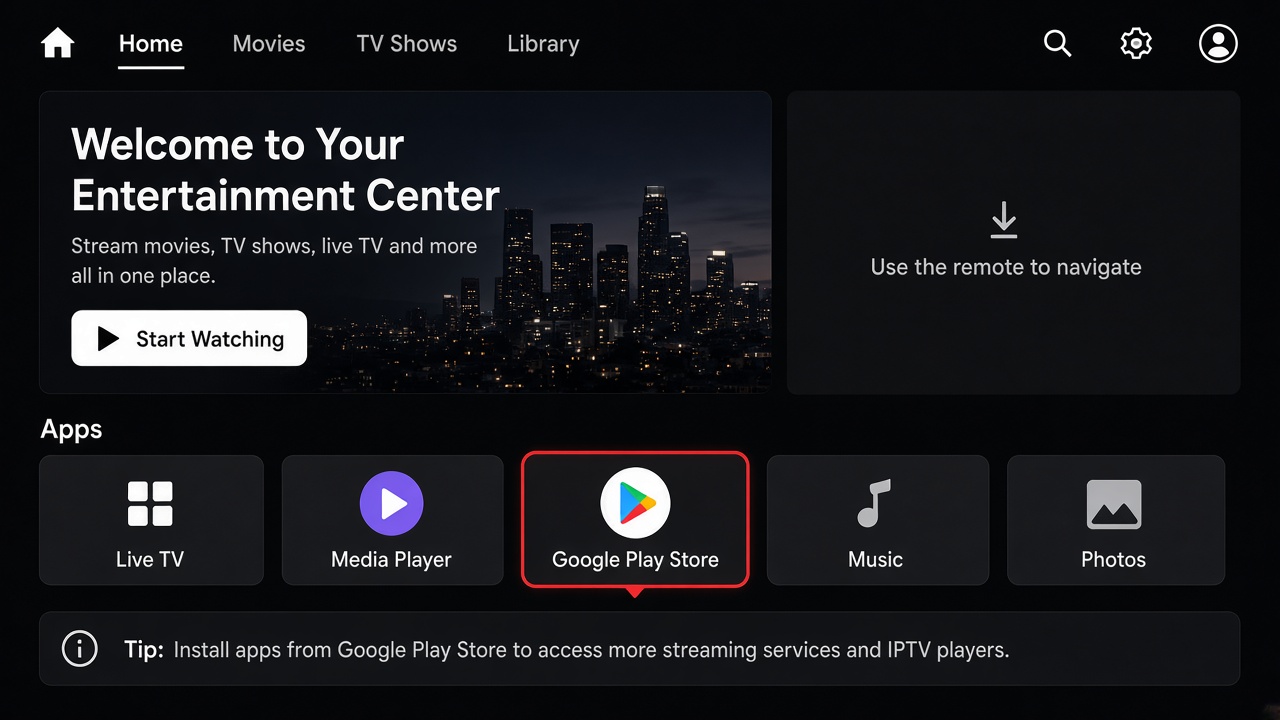
On Google TV, open the Apps tab and choose Search for apps / Play Store. On classic Android TV, open the Google Play Store from your apps row. Make sure the device is online and signed in to Google.
-
2
Install your IPTV player
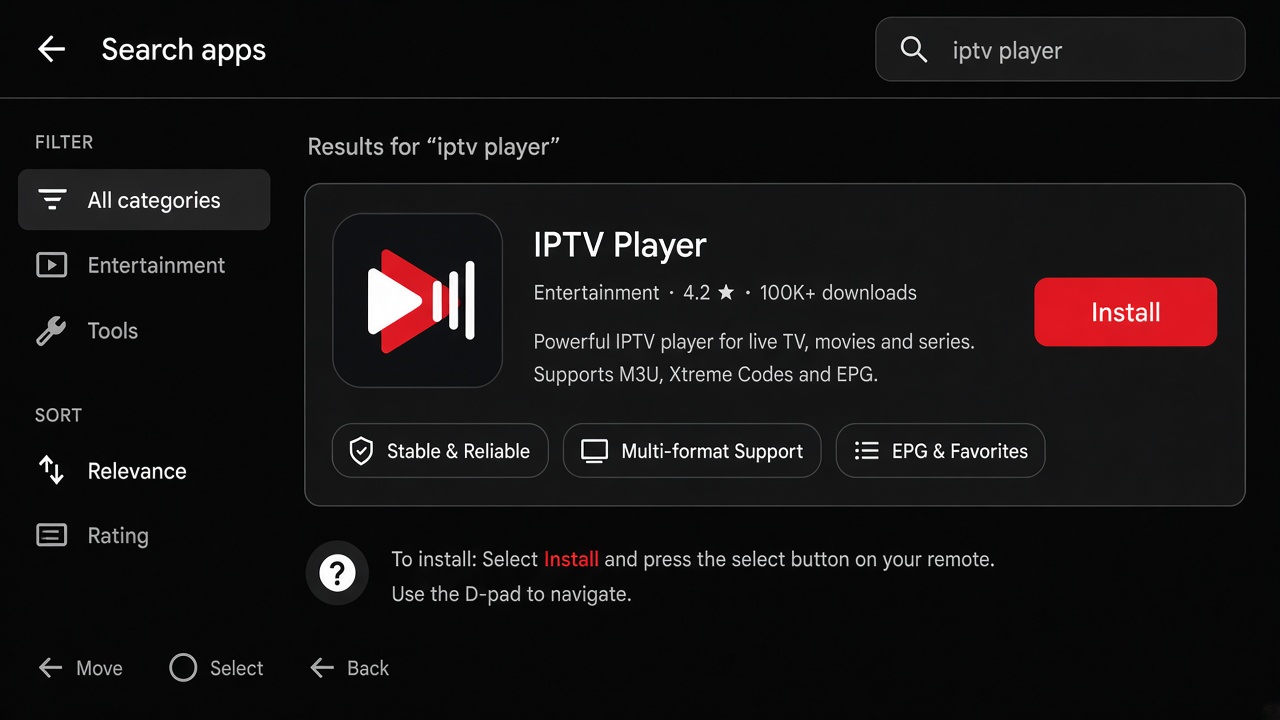
Search for a Fire TV / Android TV friendly player such as TiviMate IPTV Player or IPTV Smarters Pro. Check the publisher name, then select Install. Wait until Open appears, then launch the app.
-
3
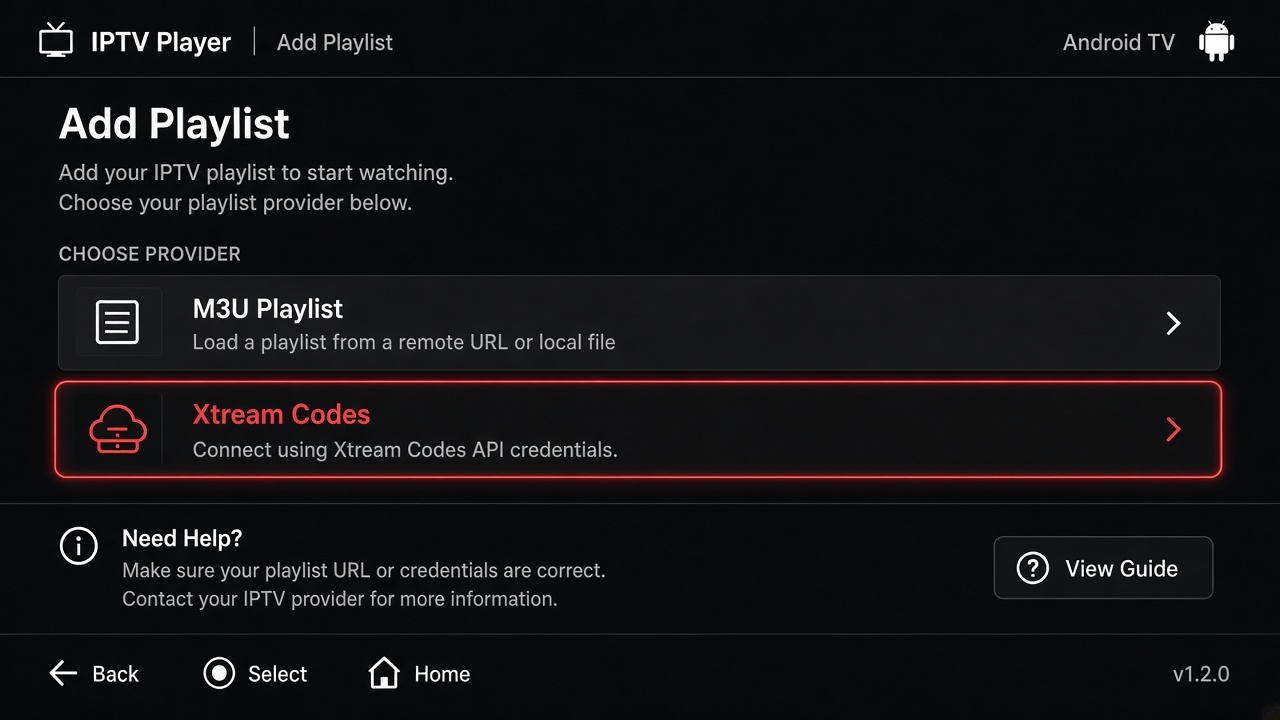
Choose Xtream Codes
Open the player and select Add playlist (or Login / Add user). Prefer Xtream Codes over a long M3U URL — it is easier with a remote and usually brings EPG plus better categories for live TV and VOD.
-
4
Enter your KEMO SAT details
Type the Server URL exactly as emailed (include
http://orhttps://and any port). Enter Username and Password, then continue / Add User. Details are case-sensitive — avoid extra spaces.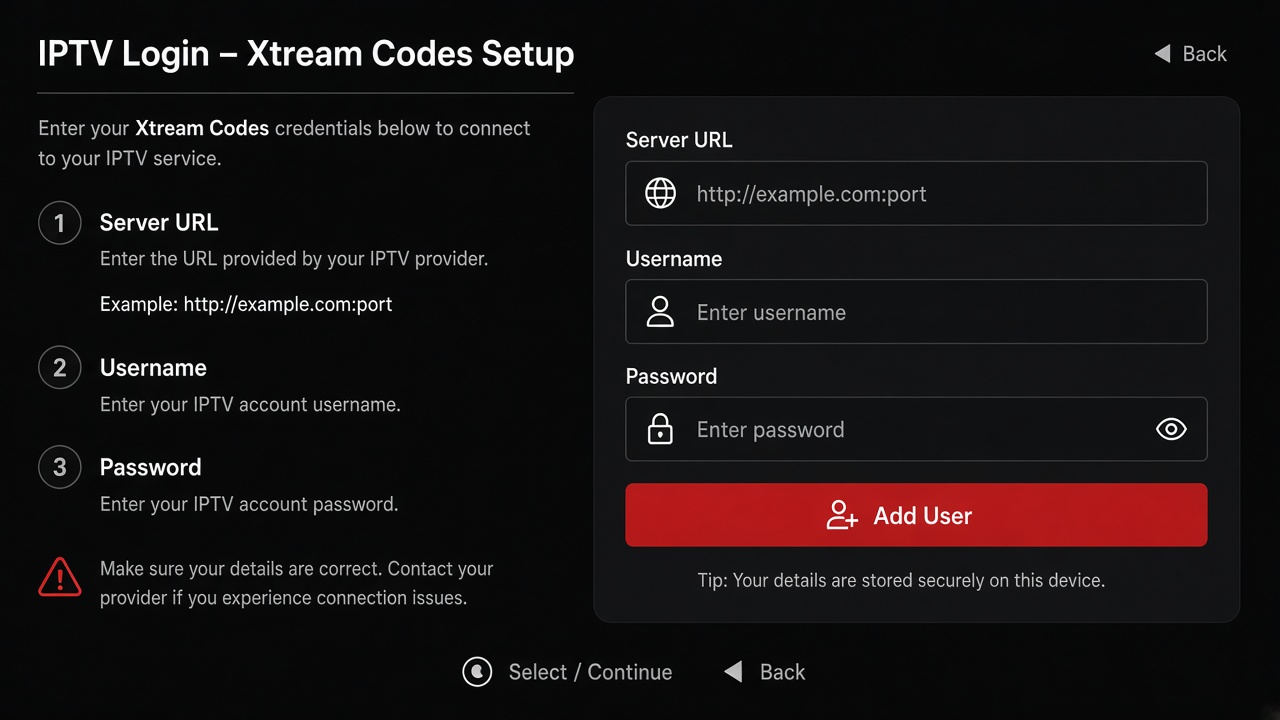
-
5
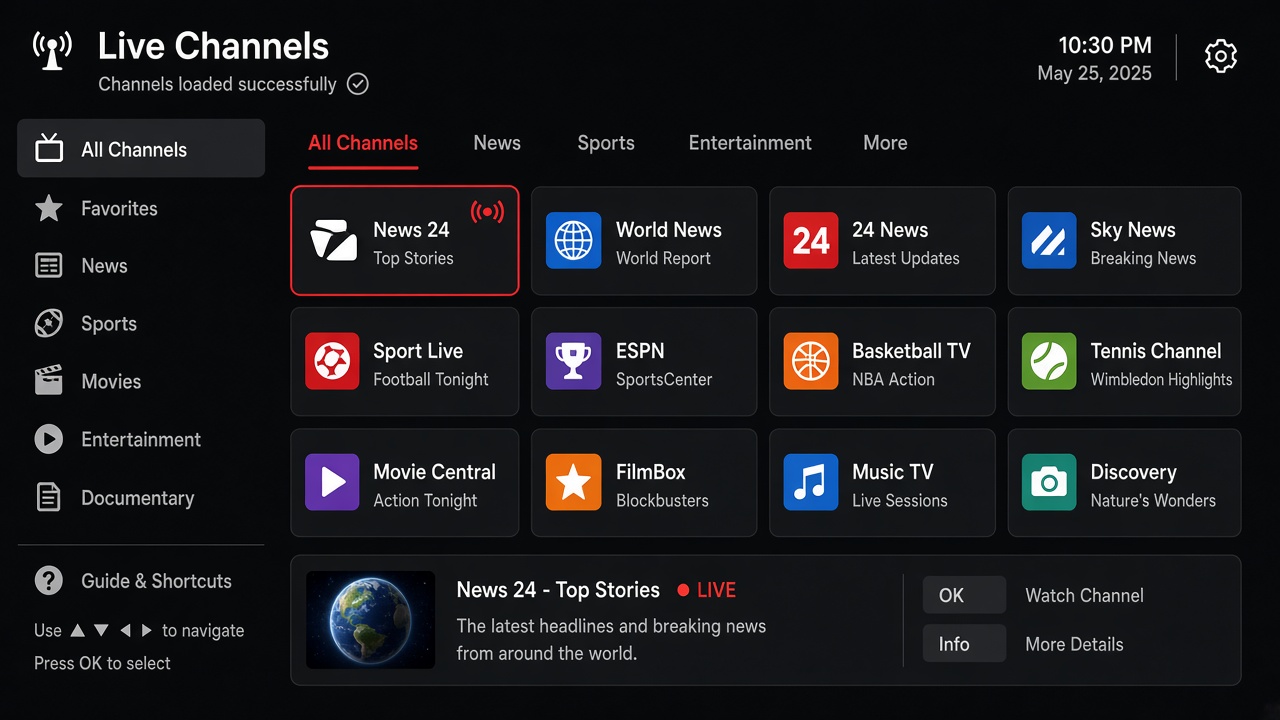
Wait for channels and start watching
Name the playlist if asked, then wait while channels and the TV guide load. Open Live TV to test a few channels, then try Movies / Series if your player supports VOD. Done.
Need player-specific screenshots? Open the TiviMate setup guide or the IPTV Smarters Pro guide.
FAQs about Android TV / Google TV IPTV
Is Google TV the same as Android TV?
Google TV is the newer interface built on Android TV. Both can install IPTV players from Google Play. The steps above work on either interface.
Xtream Codes or M3U — which should I use on Android TV / Google TV?
Use Xtream Codes when KEMO SAT gives you Server URL, Username and Password. It is faster to type with a remote and usually loads EPG automatically. Use M3U only if that is the format you received.
Why does login fail on my Android TV?
Almost always a typing issue: missing http://, wrong port, capital letters, or a trailing space. Copy details from your email carefully, or enter them on a phone keyboard if your player supports companion login.
EPG shows “No information” — how do I fix it?
With Xtream Codes, wait a minute and refresh EPG in the player settings. If the guide stays blank, confirm your subscription is active and ask KEMO SAT support to verify the EPG source.
Can I use the same account on phone and Android TV / Google TV?
Yes. Use the same KEMO SAT credentials on multiple compatible devices according to your plan’s connection limits.
Ready to watch on Android TV / Google TV?
Get your KEMO SAT free trial, install a player from Google Play, and stream live channels plus VOD on Android TV / Google TV in minutes.