Amazon Fire Stick and Fire TV are among the easiest big-screen devices for watching IPTV at home. With a remote-friendly interface, 4K support on many models, and a huge Appstore, Amazon Fire Stick / Fire TV is a top pick for KEMO SAT customers who want live TV, movies and series on the living-room screen.
This Amazon Fire Stick / Fire TV device overview walks you through checking your OS, installing a player with Downloader on Fire OS, and logging in with your KEMO SAT Xtream Codes details — the same flow used by popular players like IPTV Smarters Pro and TiviMate.
You need an active KEMO SAT subscription (or free trial). The Fire Stick does not include channels by itself — you install a player and sign in with your credentials.
Fire OS vs Vega OS on Amazon Fire Stick / Fire TV
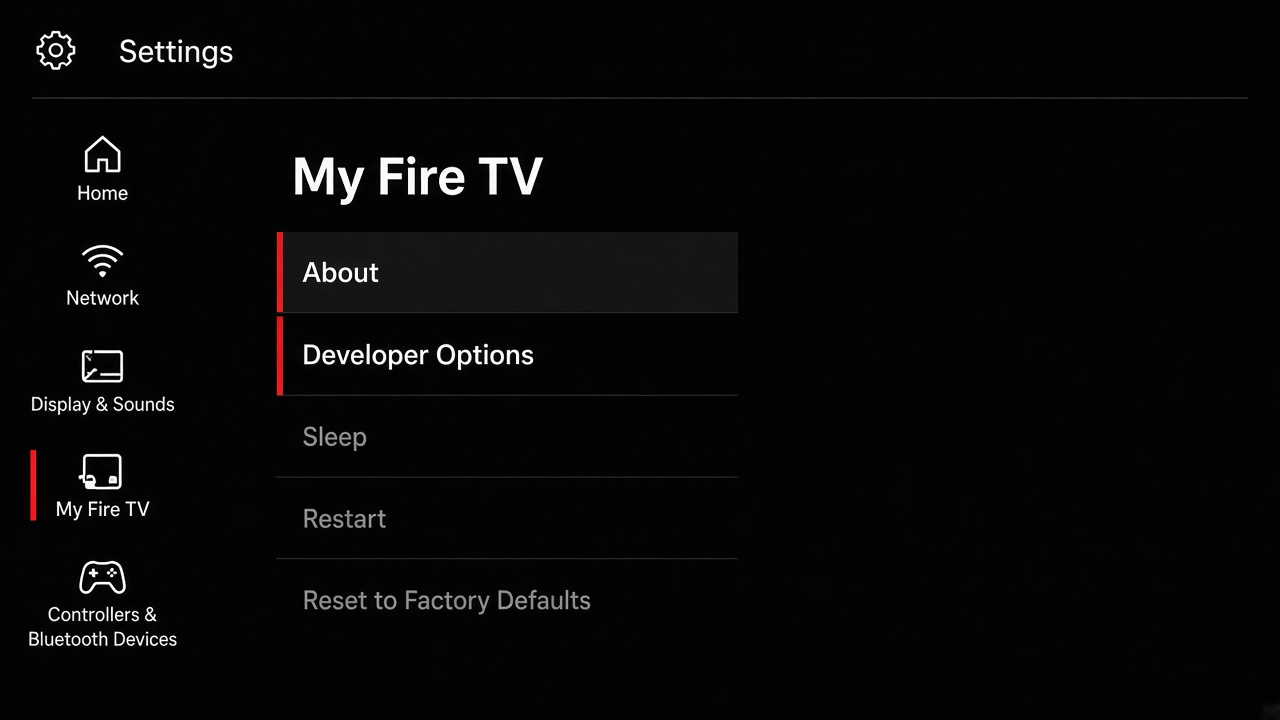
Before you install anything, open Settings → My Fire TV → About and check the software line. Most Fire Stick and Fire TV models still run Fire OS (Android-based). On Fire OS you can install Downloader from the Amazon Appstore and sideload a compatible IPTV APK.
Newer sticks such as the Fire TV Stick 4K Select (2025) and some 2026 HD models ship with Vega OS, which is Linux-based and does not run Android APKs the same way. On Vega OS, Downloader sideloading and “Install unknown apps” for APKs are not available for normal consumer use. Prefer a Fire OS Fire Stick, or ask support which Appstore / web options work for your exact model.
Quick check: if About shows “Fire OS”, continue with the steps below. If it shows Vega OS (often OS 1.x), skip APK sideloading and contact KEMO SAT support for compatible options.
Why Amazon Fire Stick / Fire TV works well for IPTV
- Simple remote navigation on the big screen
- 4K / HDR capable models for sharp live TV and VOD
- Downloader + Fire OS sideloading for popular IPTV players
- Works with Xtream Codes API and M3U playlists
- Pairs with Wi‑Fi or Ethernet adapters for stable streaming
- Same KEMO SAT login you already use on phone or tablet
What you need before setup
- Amazon Fire Stick or Fire TV running Fire OS
- KEMO SAT username, password and Server URL (from your email)
- Stable internet (5 Mbps+ for HD, more for 4K)
- About 10 minutes and the Alexa Voice Remote
Need credentials first? Start a free trial or open your client area. More device tutorials live on our Setup Guides page.
Install IPTV on Amazon Fire Stick / Fire TV
Follow these Amazon Fire Stick / Fire TV steps to enable Developer Options, install Downloader, allow unknown apps, sideload your IPTV player, then log in with KEMO SAT Xtream Codes.
-
1
Open Developer Options
Go to Settings → My Fire TV → About. Highlight your device name and press the Select button on the remote about seven times until you see a message that you are now a developer. Go back to My Fire TV — Developer Options should appear.
-
2
Install the Downloader app
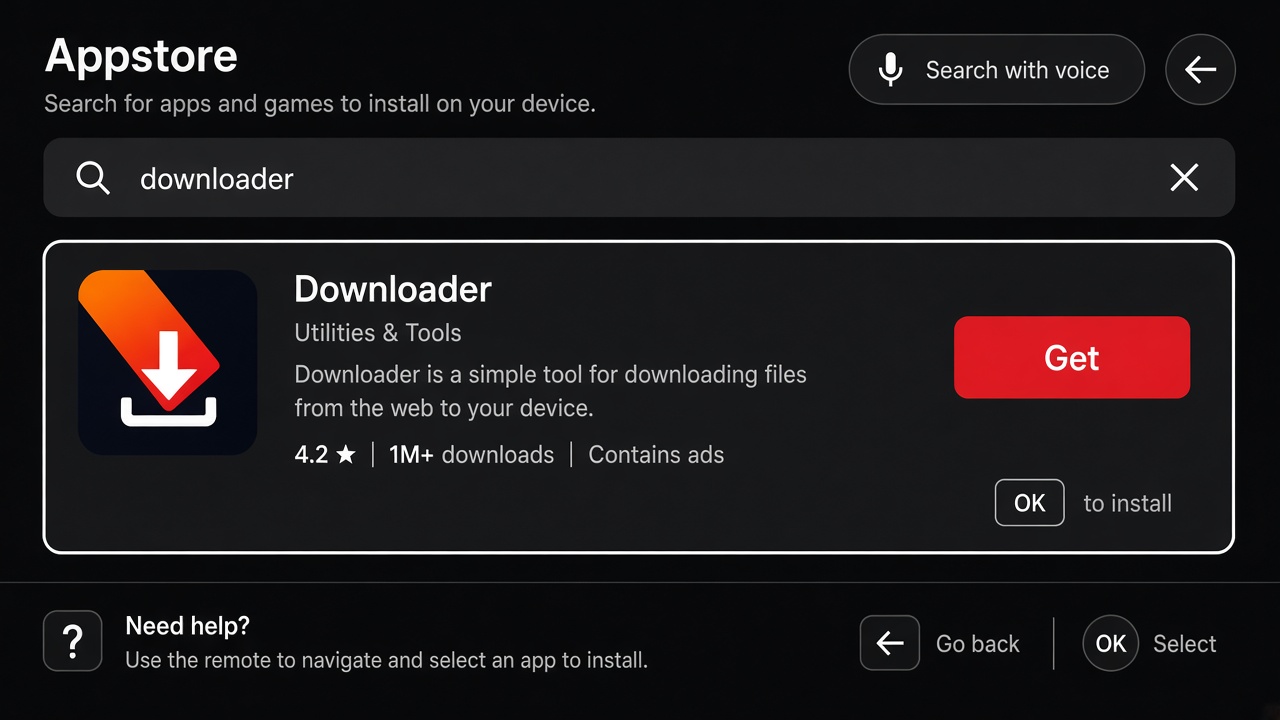
From the Fire TV home screen open the Amazon Appstore, search for Downloader (orange icon by AFTVnews), and install it. Downloader is a trusted browser/installer — it is not an IPTV service.
-
3
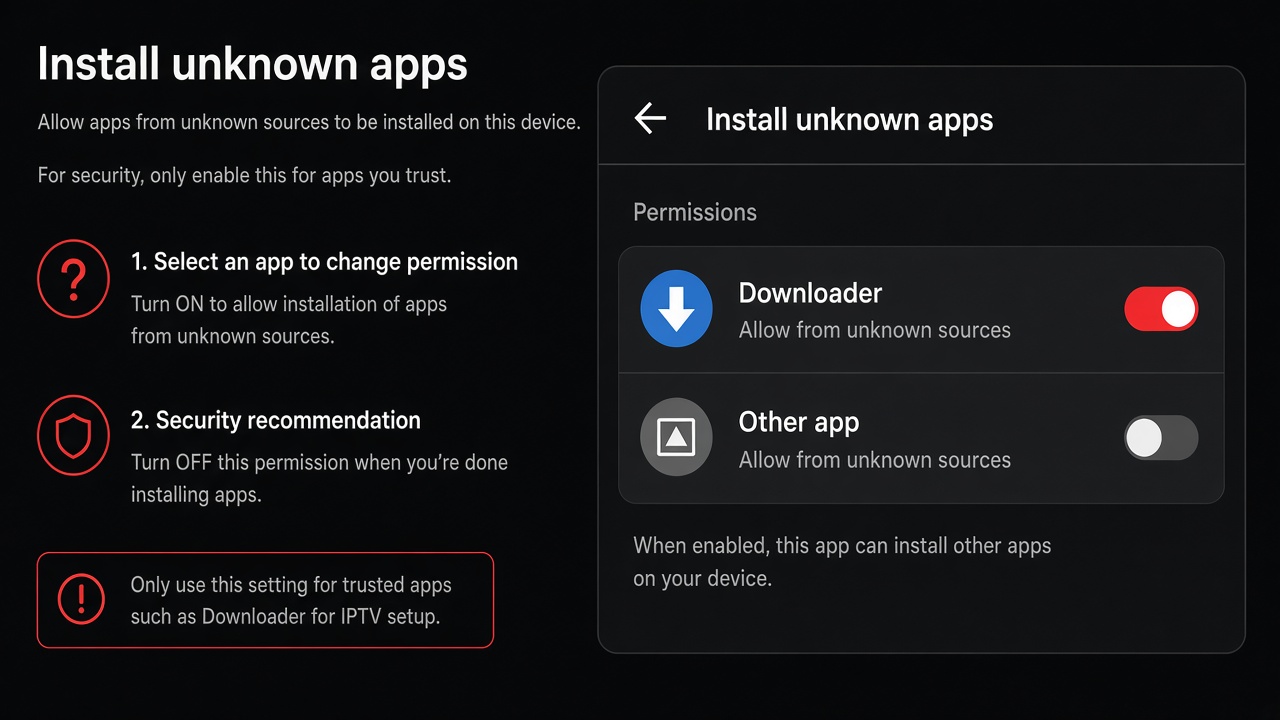
Allow Install Unknown Apps
Open Settings → My Fire TV → Developer Options → Install Unknown Apps (older Fire OS may say Apps from Unknown Sources). Turn the switch On for Downloader only. Open Downloader once first if it is missing from the list.
-
4
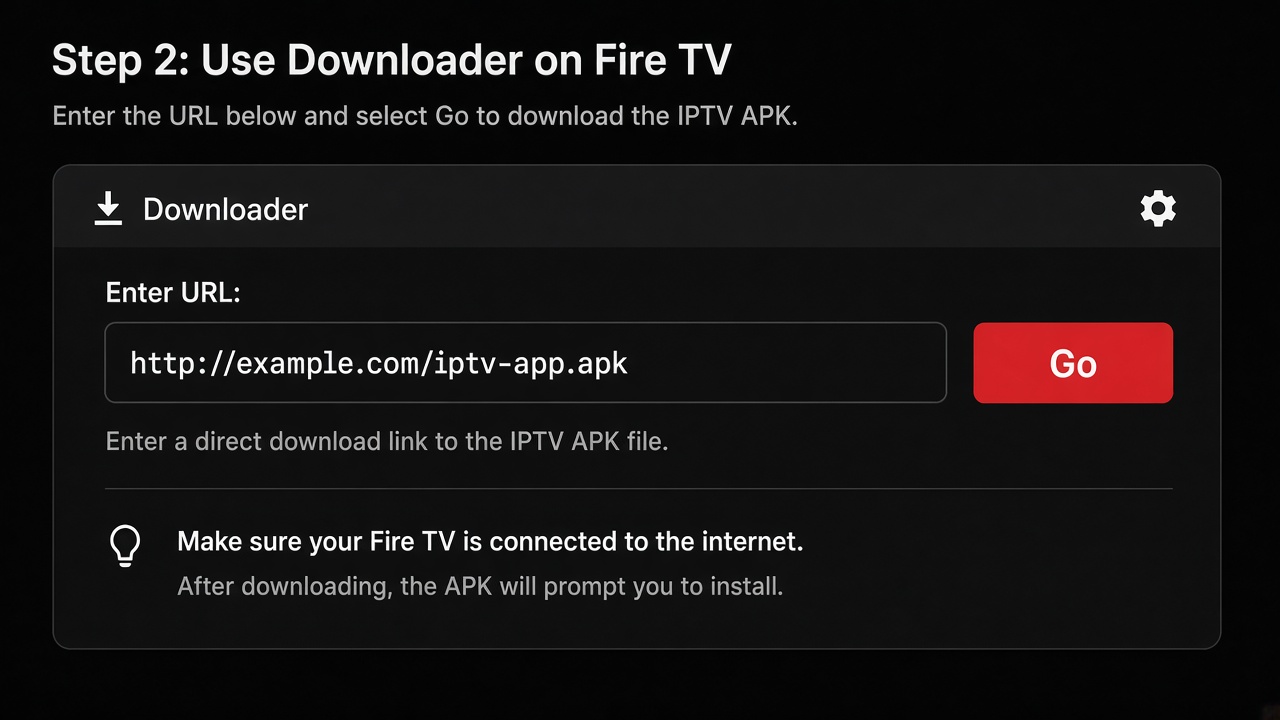
Download and install your IPTV player
Open Downloader, allow storage if asked, then enter the official APK URL or short code from your chosen player (for example the address published by IPTV Smarters Pro or TiviMate). Tap Go, wait for the download, choose Install, then Delete the APK file to free space. Only use URLs from the app developer or KEMO SAT support.
-
5
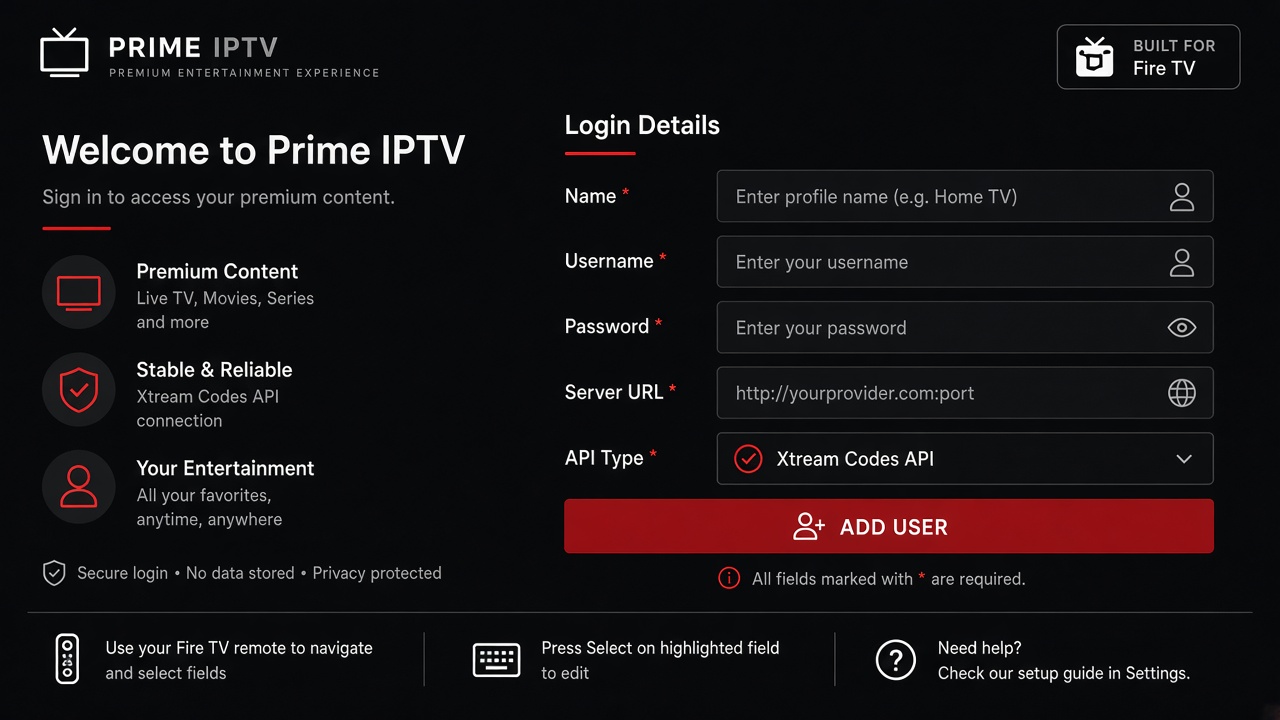
Log in with KEMO SAT Xtream Codes
Launch the player from Your Apps. Choose Xtream Codes API (or Login). Enter any name, then your KEMO SAT Username, Password and Server URL. Tap Add User / Save. Live TV, Movies and Series load when the playlist finishes syncing.
Optional: after everything works, turn Install Unknown Apps back off for Downloader. Your installed player keeps working. For player-specific screenshots, see the IPTV Smarters Pro guide or the TiviMate guide.
FAQs about Amazon Fire Stick / Fire TV IPTV
Does every Amazon Fire Stick / Fire TV support IPTV sideloading?
Fire OS models generally support Downloader and APK install. Vega OS models (such as Fire TV Stick 4K Select 2025 and some 2026 HD sticks) do not support normal APK sideloading. Always check Settings → My Fire TV → About first.
Which IPTV app should I use on Fire Stick?
Any Fire TV / Android TV player that supports Xtream Codes or M3U works with KEMO SAT. Many customers use IPTV Smarters Pro for live + VOD, or TiviMate for a live-TV focused experience on the big screen.
Where do I find my KEMO SAT login details?
Your welcome email includes Server URL, Username and Password. You can also view them in the client area after ordering a plan or free trial.
Why is my Fire Stick buffering?
Move closer to the router, use 5 GHz Wi‑Fi when possible, or add an Ethernet adapter. Restart the stick, lower the stream quality in the player if needed, and confirm no VPN is slowing the connection unless your provider recommends one.
Is sideloading safe on Amazon Fire Stick / Fire TV?
Sideloading is a built-in Fire OS feature when you allow a specific installer. Only download APKs from official developer sites or links shared by KEMO SAT support — never from random messages or unknown websites.
Ready to watch on Fire Stick?
Get your KEMO SAT free trial, install a player on Amazon Fire Stick / Fire TV, and stream live channels plus VOD in minutes.